Useful information
Cyber security: how to protect your gadget. — a practical article with explanations and recommendations for technicians, service centers, and users. It highlights the main points to consider when choosing, using, or repairing devices.
Most attacks on ordinary phone users are not clever hacks. They are reused passwords, fake links, apps from unknown sources and phones that stopped getting updates. The good news is that a handful of settings and habits block most of them. This guide covers what actually helps, based on advice from the US Cybersecurity and Infrastructure Security Agency (CISA), the UK National Cyber Security Centre (NCSC) and Google's and Apple's own help pages.
We first published this article in January 2023. In October 2026 we rewrote it and corrected some older advice, for example on password rules and public Wi-Fi, to match current official guidance.
1. Install updates and know when support ends
Updates for the operating system and apps close security holes that attackers already know about. Both CISA and the NCSC put installing the latest updates among their top tips. Turn on automatic updates for the system and for apps from Google Play or the App Store, and do not postpone a security update for weeks.
Every phone eventually stops receiving security updates. After that date, new vulnerabilities stay open. If your phone is close to that point, our article on how long a smartphone lasts helps you decide whether to keep it or replace it.
2. Lock the screen
A PIN, password or pattern plus fingerprint or face unlock stops anyone who picks up your phone from reading your messages and approving payments. A longer PIN is harder to guess than four digits, and your birth year is the first thing a thief will try. Set the screen to lock automatically after a short time.
A screen lock is also required for most anti-theft features. On Android, theft protection and offline finding need one. On iPhone, Stolen Device Protection needs a passcode and Face ID or Touch ID.
3. Use long, unique passwords and a password manager
The old rule of "8 characters with a capital letter, a number and a symbol" is outdated. CISA now recommends passwords that are long (at least 16 characters), random and unique for every account. A passphrase of several unrelated words also works. The NCSC suggests combining three random words, and points out that birthdays, family names and pet names are easy to guess because they often appear on social media.
Nobody can remember dozens of such passwords, so use a password manager. The ones built into Android, iOS and your browser are a reasonable start. Your main email account deserves the strongest and most separate password, because it can be used to reset almost everything else. If you prefer paper, the NCSC says writing a password down is acceptable as long as you keep it somewhere safe, away from the phone.
4. Turn on two-step verification
Two-step verification (2SV, also called multifactor authentication or MFA) asks for a second proof after the password: a code from an authenticator app, a prompt on your phone, a security key or a text message. CISA notes that even if someone steals your password, they cannot get past this second step. Turn it on first for email, your Google or Apple account, banking and social media. Where a service offers passkeys, they are another convenient option.
5. Be suspicious of links and messages
Phishing reaches people through texts, messengers, email and social media. Typical signs are urgency ("your account will be blocked today"), a prize you did not enter for, a parcel you did not order or a request for a code you just received. A link can come from someone you know whose account was taken over or who simply forwarded it.
- Do not open links in unexpected messages. Type the address yourself or use the official app.
- Never share one-time codes, your PIN or your passwords with anyone who asks, even if they claim to be from a bank or a delivery service.
- If you call back, use the number from the official website or the back of your card, not the one in the message.
A tool such as VirusTotal can check a suspicious link against dozens of antivirus engines and blocklists. Keep in mind that submitted files and links are shared with the security community and VirusTotal's paying customers, so never upload private documents to it.
6. Install apps only from official stores
For phones, that means Google Play (or your phone maker's own store) on Android and the App Store on iPhone. Installation files sent in messengers or downloaded from websites are a common way to spread malware. On Android, Google Play Protect checks apps from Google Play before you install them, scans the device for harmful apps from other sources and can warn about, disable or remove them. Leave it switched on.
After installing an app, look at its permissions. A torch or a wallpaper app has no reason to read your messages, contacts or location. You can review permissions in the privacy section of your phone's settings.
7. Public Wi-Fi: less risky than it used to be
The US Federal Trade Commission notes that most websites now encrypt the data you send, and most apps do too, so using public Wi-Fi in a cafe or airport is usually safe. Look for https or the padlock in the address bar. The remaining risk is fake websites: scammers encrypt their sites as well, so the padlock means the connection is encrypted, not that the site is genuine. Do not install anything a hotspot login page asks you to install, and if you are unsure about a network, use mobile data for banking.
8. Share less, and back up
Your date of birth, address, phone number and travel plans help scammers guess passwords and answer security questions. Keep profiles private and post less personal detail. Back up photos, contacts and important documents to the cloud or an external drive, as the NCSC advises. With a backup, a lost, stolen or infected phone is a nuisance rather than a disaster.
Prying eyes are a risk too. In public transport or a queue, a privacy screen protector makes the display hard to read from the side, so PINs and messages stay private.
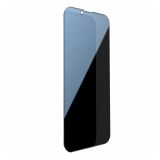 Protective glass (Anti-Spy) for Phone 13 / 13 Pro / iPhone 14 / iPhone 16e (6.1') Black2,02 $›
What to do if you suspect malware
- Uninstall apps you do not recognise or no longer need, starting with recently installed ones.
- On Android, run a Google Play Protect scan. On any phone, install all pending system and app updates.
- From another, trusted device, change the passwords of your main accounts and sign out of unknown sessions.
- If the problem persists, back up your photos and contacts (not apps of unknown origin) and do a factory reset.
Prepare for loss and theft too. Our step-by-step guide on how to find a lost phone explains Find Hub, Find My and SmartThings Find and what to switch on in advance. When you sell or hand down an old phone, sign out of your accounts and reset it first. More on that in our article on what to do with an old smartphone.
Quick checklist
- Automatic system and app updates on.
- Screen lock with a longer PIN or password plus biometrics.
- Long, unique passwords in a password manager.
- Two-step verification on email and your main accounts.
- Apps only from official stores, Play Protect on.
- Regular backups.
Sources
- CISA, Secure Our World: Use Strong Passwords; Turn On MFA.
- NCSC (UK): Top tips for staying secure online; Three random words.
- US Federal Trade Commission: Are Public Wi-Fi Networks Safe? What You Need To Know.
- Google Play Help: Use Google Play Protect to help keep your apps safe and your data private.
- VirusTotal documentation: How it works.

 UA
 RO




The information below is required for social login
Sign In
Create New Account