Useful information
In what cases can you fix the screen yourself? — a practical article with explanations and recommendations for technicians, service centers, and users. It highlights the main points to consider when choosing, using, or repairing devices.
If your phone screen stops responding to touch or reacts on its own, rule out the simple causes first: dirt or moisture on the glass, a badly fitted screen protector, a frozen app or a system glitch. Do not open the phone at home. After a drop, contact with liquid, or when you see lines, blotches or cracks, the phone needs a professional diagnosis.
What is failing: the picture or the touch layer?
| Symptom | What you can check | When to go to a repair shop |
|---|
| The picture is fine but touch does not respond | Clean and dry the screen, remove an ill-fitting protector, restart the phone | The problem stays, or it started after a drop or contact with liquid |
| Part of the screen ignores touch | Test it without the case and screen protector | The dead zone keeps returning in the same place |
| Lines, flicker or black blotches | Back up your data while you can still control the phone | Stop experimenting and hand the phone in for diagnosis |
| The screen is black | Check the charger and do the official forced restart for your model | You hear sound or feel vibration, but no picture appears |
Safe checks at home
- Inspect the phone. If the case is bent, the battery looks swollen, there are traces of liquid or the phone is getting very hot, do not charge it and take it to a service centre.
- Clean the screen. Unplug the cable, turn the phone off and wipe the screen with a clean, dry, lint-free cloth such as microfibre. Keep moisture out of the openings.
- Remove accessories. A case that presses on the edges, a protector with trapped air or a film that has started to peel can all interfere with touch. Disconnect wired accessories too: Apple notes that if the screen works after you remove one, the outlet, cable or charger may be the cause.
- Restart the phone. Use the button combination from the official instructions for your exact model.
- Check updates and apps. Install pending system updates. If the fault appears only in one app, update or reinstall that app after backing up anything important.
What not to do
- Heating the display with a hair dryer or chilling the phone to "reset" it can make things worse.
- Pressing on blotches, cracks or lifted glass can spread the damage.
- Opening the phone is a job for someone with the right tools, experience and a safe way to disconnect the battery.
- Random firmware from unofficial sources can wipe your data and add new problems.
Parts and protection must match the exact model
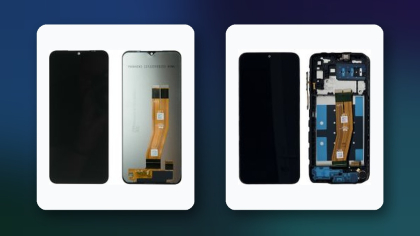
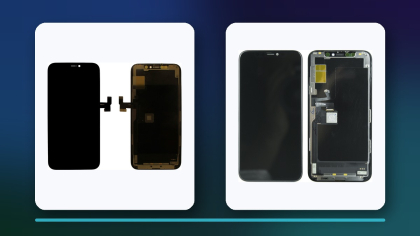
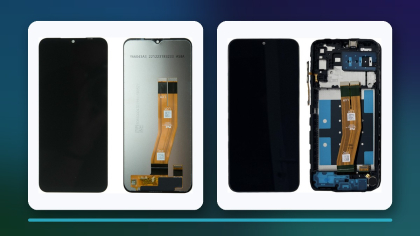
Display modules and screen protectors are not universal. Before ordering, compare the full phone name, model number, revision, screen size, cut-outs and frame. The items below illustrate different categories; they are not alternatives to each other.
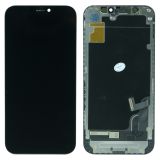 Display iPhone 12 Mini Black H/C INCELL16,48 $›
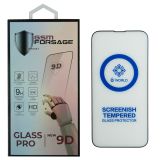 Protective glass Premium Tempered Glass for iPhone 13 / iPhone 13 Pro / iPhone 14 Black2,21 $›
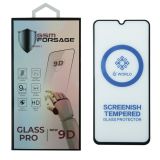 Protective glass Premium Tempered Glass Motorola Moto G10 / Moto G20 / Moto G30 Black2,21 $›
When to see a technician
Book a repair after a drop or contact with liquid, or if you notice cracks, lines, black blotches, phantom taps, a dead zone that keeps returning or no picture at all. If it is safe and the screen still responds, back up your data first and write down the symptoms so the technician can reproduce them.
To narrow down the cause, see our overview of common phone screen problems. If a replacement is needed, our explainer on phone screen quality grades describes the module types, and the guide to choosing smartphone repair parts shows what to check before ordering.

 UA
 RO




The information below is required for social login
Sign In
Create New Account